These days, social media sees a new trend almost every day. And since we’re living in the age of AI, it’s no surprise that AI-edited videos are taking over the internet. These videos look so realistic that you’d never guess they were created using artificial intelligence. The technology has advanced to the point where you can produce stunningly lifelike video edits with just a single click.
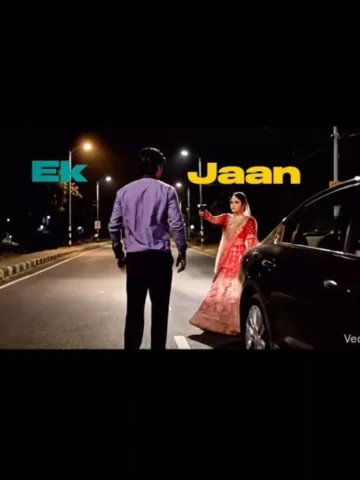
If you want to create videos like these, keep reading because I’m about to show you one of the hottest AI video editing techniques trending right now. You might have come across a viral clip where a guy steps out of a car, and suddenly his girlfriend or partner appears from the other side, pointing a gun at him as if she’s betraying him. The scene looks incredibly real, and videos like this are blowing up online.
In this guide, we’ll recreate that effect using a simple prompt. I’ll walk you through the entire process step by step so you can make your own trending AI video edit with ease.
Let’s get started!
Details Of Trending Paaro Ai Video Editing
This trending video was created using an AI tool that you can access for free—and in this article, I’ll show you exactly how to do it. First, let’s break down the video concept. The scene begins with a car coming to a stop on a deserted road at night. The atmosphere feels eerie and cinematic. Suddenly, the car halts, and we step out. From the other side, our partner approaches, dressed in a stunning wedding outfit. She walks toward us, stands face-to-face, and then the song lyrics kick in, adding drama to the moment.
This type of video looks incredibly realistic, and people are loving it. Many creators want to make similar clips—and if you’re one of them, keep reading because I’ll guide you through the entire process step by step.
Edit With Flow Ai
Friends, we’re going to create this trending video using an AI tool called Flow, developed and managed by Google. Its full name is Google Flow AI, and we’ll use it for our video editing. This tool is designed to create unique and creative videos effortlessly. You can generate videos from text or even from a single image—just by writing a prompt.
I’ve included the exact prompt you’ll need in this article. Simply copy the prompt and paste it into Flow AI to start editing your video. The tool offers a variety of effects, but in the next section, I’ll explain the specific trick we’ll use. I’ll guide you step by step on how to generate your video by using the provided prompt.
Note: Some CapCut templates may not open in certain regions due to the app’s own restrictions. If the template button doesn’t respond, please try again later or open it directly from the official CapCut app. This external link opens the original CapCut template in a new tab. We are not affiliated with CapCut; all rights belong to their respective owners, and we only provide links for user convenience.
Video Prompt:-
Cinematic 4K action scene, hyper-realistic, with immersive and high-quality audio.
Visuals: A sleek, dark-colored car (like a black or deep grey sedan, similar to the image provided) is stopped on a dimly lit, empty asphalt road under a night sky, with faint streetlights in the distance. The man, who strongly resembles the person in the reference image you provided, exits the driver's side. The woman, elegantly dressed (similar to the red attire in the image), exits the passenger side. As the man turns away, the woman suddenly pulls out a handgun. She aims and fires at the man.
Camera & Lighting: The scene is shot with dramatic, low-key lighting, emphasizing shadows and highlights. A slight slow-motion effect is applied during the shooting sequence.
Audio: Clear sound of car doors thudding shut. Subtle ambient night sounds. A sudden, sharp gunshot sound effect with a slight echo immediately followed by a dramatic thud as the man falls. A tense, low orchestral cinematic music score subtly swells during the shooting moment, then fades out."
Generate Your Video
- Friends, making this kind of AI video is super easy. Just follow these steps:
- Finally, hit “Generate.”
- Click on “Generate Video” – This will take you straight to the Flow AI website.
- Log in using your email address.
- Create a Project – Select the “Create Project” option.
- On the dashboard, choose “Text”, then select “Frame” and “Video.”
- Click the “+” icon to upload an image, then enter text in the box provided below the image on my site.
- Copy the prompt I’ve shared in this article and paste it into the text box.
Conclusion
So friends, this is how you can create this trading/video editing effect where you get out of your car and approach your girlfriend, and then the song lyrics start playing. The atmosphere will be completely realistic, with a deserted road and a night view. This is how you can create a realistic video, and many people are liking this effect and starting to create their own videos like this. So you should also try this video editing technique as soon as possible and share it on social media. You will get excellent results. Now I hope you have understood everything I explained and that you will be able to create your own video. If you liked the article, don’t forget to share it.