Truck Ai Video Editing – Hello friends, and welcome to this new article! In today’s article, I’ll be showing you how you can create a new and trending video using AI right from your phone. You must have come across that viral Instagram video where a truck passes by, and as soon as it goes ahead, a man suddenly falls onto the road and lies down. This type of video is made entirely with AI. Here, I’m providing a complete tutorial that will help you make your own video in this trending style. Make sure to read the article properly; all the information you need is included here.
Details Of Truck Ai Video Editing
In this video editing tutorial, we’ll see how to create a realistic image of ourselves using a song called “Paro,” which is considered a romantic song. What happens in the video is that at the beginning, we’re on a truck, and as the truck passes, we fall onto the road and lie there as the song starts playing. The whole thing looks so realistic that no one would be able to tell that it was created using AI. But I’m telling you, you can also create such a video for yourself, and to do so, you’ll need an AI tool, which I’ll tell you about later. With this tool, you can easily create videos that look completely realistic. So, let me tell you which tool we’ll be using.
What Is Flow Ai
Google Flow AI is a powerful AI platform created by Google that helps with content creation, workflow automation, and smart assistance. Using advanced AI, it allows users to generate text, images, videos, and creative ideas, making their tasks quicker and more convenient. The main purpose of Google Flow AI is to reduce manual work and provide intelligent support so that creators, marketers, and businesses can work more efficiently. With its easy-to-use interface and strong AI capabilities, it has become a very useful tool for both beginners and professionals. You can turn text or photos into videos, and it also offers many additional features for creating unique content. In this article, I will guide you on how to create a video using this tool. Continue to the next paragraph to learn how it works. After that, just copy the prompt, paste it into the tool, and generate your video.
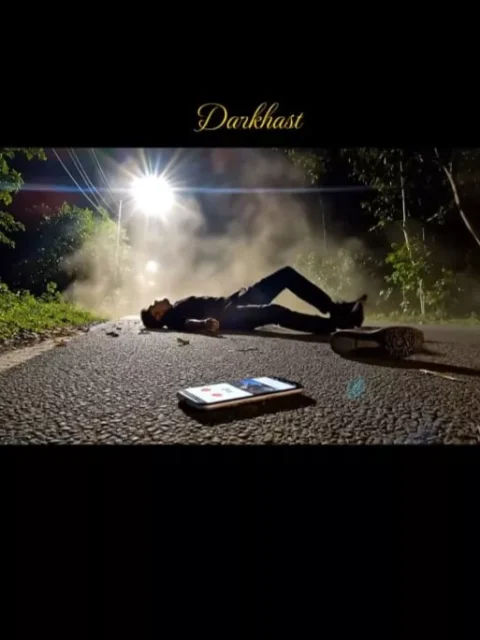
VIDEO PROMPT :-Copy Prompt
Cinematic extreme low-angle side view, fixed camera placed directly on rough Indian asphalt at night. The scene captures a violent hit-and-run taking place from left to right. A massive, dull brown-orange Indian commercial truck (Tata / Ashok Leyland style) with yellow reflective strips is roaring past the frame, its side profile heavily blurred by speed. A massive, chaotic cloud of dust, dry leaves, and debris explodes forward from the front of the truck, indicating a recent frontal impact.

In the immediate foreground, inches from the camera lens on the cracked road surface, a modern smartphone with a lit, cracked screen is tumbling wildly mid-air across the asphalt. The glowing screen clearly shows an active video call interface with the contact name "My Girl" . Next to the tumbling phone, a single sneaker is also skidding across the road.

a human figure from the reference image loses balance near the rear side of the truck. The motion is implied and natural, not sudden or artificial. The body enters the frame already in motion, bumped forward by the truck's momentum. Gravity pulls the figure straight downward, with the torso aligned in the direction of travel.

The harsh white Indian streetlight from the wooded edge casts long horizontal shadows, starburst lens flares, and illuminates the swirling dust particles. Cold night tones dominate. The truck’s suspension is visibly compressed from the force. The background is dark forest silhouettes. No camera movement. Photorealistic, dramatic, gritty.
Note: Some CapCut templates may not open in certain regions due to the app’s own restrictions. If the template button doesn’t respond, please try again later or open it directly from the official CapCut app. This external link opens the original CapCut template in a new tab. We are not affiliated with CapCut; all rights belong to their respective owners, and we only provide links for user convenience.
How To Generate Video
So friends, to edit this trending video, we will need an AI tool created by Google. Its name is Google Flow AI. And we will be using this tool to generate our video. So let me tell you the steps; you can follow them to complete your video editing. First, you need to copy the given video prompt. The image you want to use is also provided in the prompt; copy that as well, and then click on the “Generate Your Video” button. This button will take you directly to the official Google Flow website.
Now, we will generate our video here. First, click on the “New Project” option to create a new project. Then, in the dashboard, you will see the “Text to Video” option; click on it and select “Frame to Video.” Then, add your image using the plus icon and paste the prompt. After that, click on the “Send” button and wait for a while. Your video will start generating, and then an AI-generated video will be ready, just like the one you saw on social media. It will feature your face and will be created from your photo. This is how you can create this trending video. Now all the video clips have been generated. We can now open any video editing application, add all these clips together, and combine them into a single complete video.
Conclusion
Friends, this is how you can generate office-style videos, which are essentially behind-the-scenes video edits of movies. People are really enjoying doing this and showing a lot of interest in it. So, if you try it, your video has a higher chance of going viral. People will start asking you, “How did you do this editing?” I hope you liked the method I explained. If you liked the article, please share it so that others who want to do this kind of video editing can also create their own videos. For more new and trending video editing techniques, visit our website. You’ll find new content here, all based on current trends.